Getting started on Bookmap
This page covers the Pulling & Stacking Indicator on Bookmap, where it runs as an add-on, with its flow panel under the heatmap.
The Bookmap version is available two ways, at the same price: from the Sigmantra store on the pricing page, where one subscription covers every supported platform, or on the Bookmap Marketplace.
- Download the indicator:
- Bought on sigmantra.com: download the Bookmap version from your
Sigmantra account. It comes with its install steps, and you activate it
with the licence key from your welcome email. The SHA-256 shown beside
the download in your account is the hash of the zip you download. The zip
holds the indicator's
.jarfile and a.sha256file with the hash of that.jarfile, which the install steps compare. - Bought on the Bookmap Marketplace: download it from your Bookmap account under Account > Subscriptions.
- In Bookmap, connect to your data and open a chart of an instrument first:
until an instrument is open, Configure add-ons does not open (Bookmap says
Not available yet: In order to interact with add-ons you need to subscribe to any instrument). Then choose Settings → Configure add-ons → Add and enable Pulling & Stacking Indicator. Bookmap loads one copy of the indicator, so keep only one of the two versions in Configure add-ons.
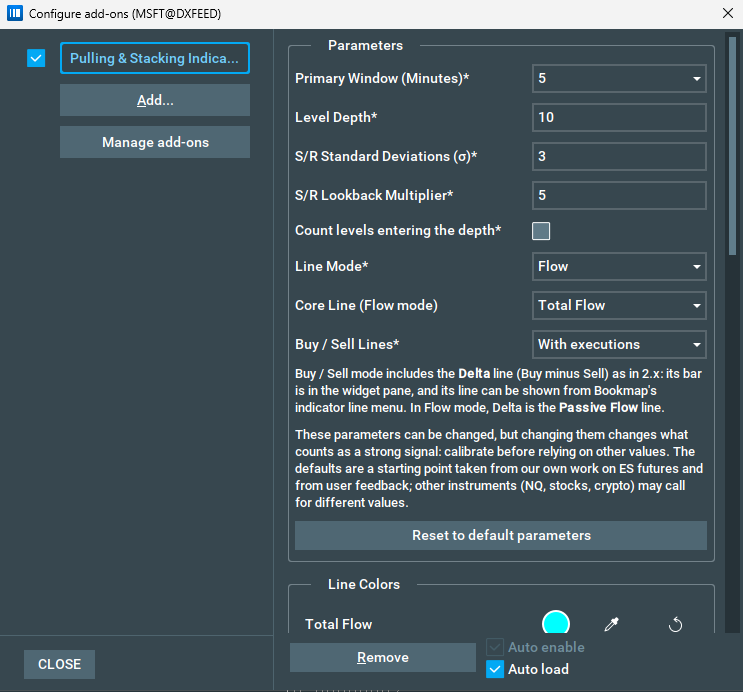
- Accept the Terms and Conditions in the indicator settings panel. Until you do, the panel shows only the terms (and, in the version bought on sigmantra.com, the Licence section above them), the console does not open, and the indicator computes nothing: the flow panel below the heatmap has no lines and no arrows are drawn. Bookmap still shows the indicator's bars in the widget pane at the right of the flow panel, but they are not readings. A revised terms release is re-presented in the settings panel (see terms & legal). Bookmap keeps your acceptance in its own settings, so it asks for it even if you have already accepted the terms on another platform on this computer.
- Bought on sigmantra.com: activate your licence in the Licence section of the same settings (see activate your licence). If your licence is already active on this computer (activated before in Bookmap or on another platform we support), accepting the terms is enough: do not enter the key again. The Bookmap Marketplace version needs no licence key.
- The flow panel appears below the heatmap and the Pulling & Stacking Console opens. The indicator warms up in stages, lines first; on an instrument that has already been open for a while it starts further along.
Requirements: depth-of-market (L2) data for the traded instrument. If you use Bookmap's replay, play it at normal speed (1x): at faster speeds the indicator may not read the data correctly (see limitations).
Activate your licence
This section is for the version bought on sigmantra.com. If you bought the indicator on the Bookmap Marketplace, there is no licence key to enter: skip it.
The licence key is in the email you get when you subscribe, and starts with lic_.
- In the indicator's settings (Settings → Configure add-ons, then select Pulling & Stacking Indicator), find the Licence section at the top and paste your key into Licence Key.
- Tick Activate Licence.
After a few seconds the status line under Activate Licence says
Licence active on this computer. and the indicator starts. While the licence
is active, Activate Licence stays ticked and greyed out, and the key field
shows only the start of your key. You do not need to enter the key again: it is
kept for this computer, not in the Bookmap workspace.
Until the Terms and Conditions are accepted, the indicator does not look for
your licence. The Licence Key field is empty and the status line reads
Accept the Terms and Conditions first (below). Then enter your licence key and tick Activate Licence.,
also on a computer where your licence is already active. On such a computer,
only accept the terms: the status line then changes to
Licence active on this computer. by itself, and the key field shows the start
of your key. You do not need to enter the key again.
If you enter your key before you have accepted the Terms and Conditions, the indicator asks you to accept them first. Your key is kept until you do, and it is activated as soon as you accept the terms. Nothing is activated before that.
Until the licence is active, the indicator draws no lines or arrows (the
widget pane may still show its bars, with no readings), and the
Pulling & Stacking Console shows the instrument as PAUSED with the
reason, for example PAUSED - licence required (see the indicator settings).
One key covers one computer. Bookmap and the other trading platforms we support on the same computer all count as that one computer, so a licence activated in one of them is active in the others too.
The indicator needs an internet connection: it runs only while your licence is
confirmed online, and there is no offline period. Without a connection the
indicator pauses (the console tile shows
PAUSED - could not reach the licence server), also when Bookmap starts without
one, and it starts again by itself once it connects. If the connection drops for
a moment while the indicator is running, it goes on for up to 2 minutes while it
tries again, then pauses. The licence is checked again once a day while the
indicator runs.
Release this computer
To move your licence to another computer, first release it on this one: in the
Licence section, click Release This Computer and confirm. The status line
then says
This computer has been released from your licence. Enter your licence key again to use the indicator here.,
the indicator stops here (on every platform on this computer that uses the
licence), and you can activate your key on the new computer. You can also release
a computer from your Sigmantra account (Release computer).
If the status line says the licence is active on another computer, release it there, then tick Activate Licence again. If you can no longer reach the old computer, write to contact@sigmantra.com.
Next: the flow decomposition · Bookmap settings reference
Chart images. The chart images on this site show the indicator's display on market data, to explain what it draws. They are not trading results or trade recommendations, and the risk and hypothetical performance disclosures above apply to them. We publish no trading performance. The full text is on the disclosures page.