Getting started on Classic ATAS on ATAS (Classic)
This page covers the Pulling & Stacking Indicator on ATAS (Classic), where it runs as an indicator, in its own panel under the price chart.
The indicator for Classic ATAS is one file, PullingAndStackingIndicator.ATAS.Classic.dll, for
Classic ATAS (ATAS Platform) 8.0.15 or later, on Windows. ATAS X has its own file and its own pages. It needs a data
connection that provides market depth (Level II, the order book) and trades for
the instrument. It works on live data and on ATAS's Market Replay (see
indicator states).
Install
- Download the Classic ATAS zip from your Sigmantra account and unzip it. It holds
the DLL, a
.sha256file with the DLL's checksum, andINSTALL.md. The SHA-256 shown beside the download in your account is the hash of the zip itself; the.sha256file inside is the hash of the DLL. To check the file, open PowerShell in that folder and run(Get-FileHash PullingAndStackingIndicator.ATAS.Classic.dll).Hash -eq (Get-Content PullingAndStackingIndicator.ATAS.Classic.dll.sha256).Split()[0].ToUpper(). It printsTruewhen the file matches. - Copy
PullingAndStackingIndicator.ATAS.Classic.dllinto%APPDATA%\ATAS\Indicators\(paste that path into the File Explorer address bar). Replace the old file if Windows asks. - If ATAS is running, it says "Some indicator libraries have been changed". Click the indicators icon at the right end of the main window's status bar (next to the version number) to reload them, then click OK.
No restart is needed. To update the indicator later, replace the file the same way and reload: a chart that has the indicator is rebuilt with the new version, and its warm-up starts again.
First chart
- Open a chart of the instrument you trade.
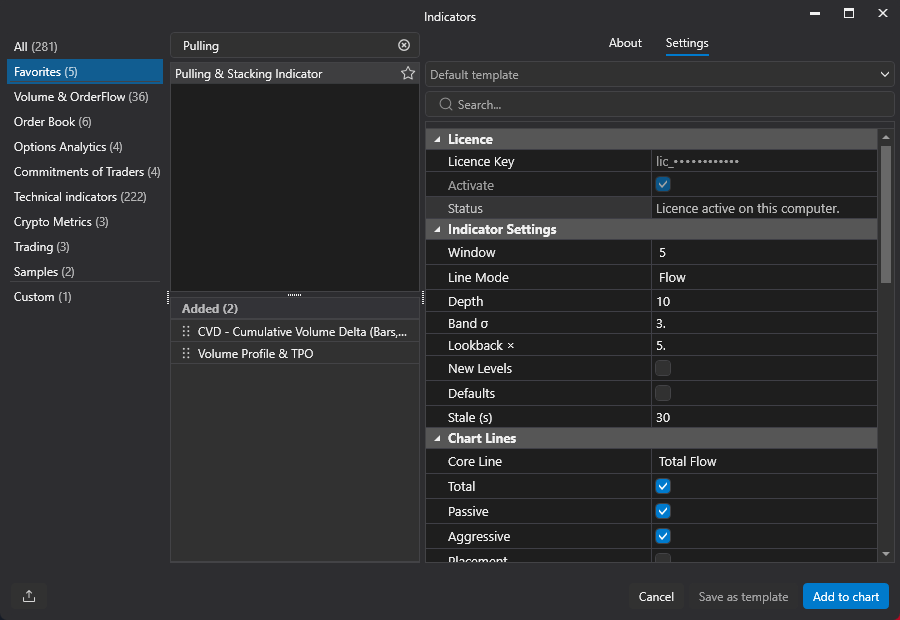
- Click Indicators in the chart's toolbar, open the Custom group and double-click Pulling & Stacking Indicator (or select it and click Apply).
- The first time, the Terms and Conditions window opens. Read them and click I accept the Terms and Conditions. Until you accept, the indicator draws nothing and the console does not open. Not now closes the window until the next time ATAS loads the indicator. To read the terms again at any time, tick Terms (group Terms and Conditions) in the indicator's settings: the terms window opens as soon as you tick it, without Apply.
The lines are drawn in their own panel under the price chart, and the arrows on
the price chart. Once you accept the terms, the Pulling & Stacking Console
opens beside the chart, in a window of its own, with one tile per instrument.
When it starts, a tile shows PAUSED - checking your licence for the first
seconds, while the licence is checked, then WAITING FOR ORDER BOOK DATA, then
WARMING UP. The order book has no history, so the lines start from the moment you add the
indicator, and with the default settings the Resistance and Support band needs
about 25 minutes of data.
Market depth. Pulling and stacking is measured on the order book. If the
connection sends no depth, the tile's state line says No Level II depth received.
If the depth stops while trades continue, it shows ! ORDER BOOK DATA STOPPED.
ATAS's built-in "Charting powered by dxFeed" CME data is delayed: use a real-time
feed with depth (a broker or data connection, or a crypto exchange connection)
for live readings.
Activate your licence
The licence key is in the email you get when you subscribe, and starts with lic_.
Until the licence is active, the chart stays empty and the console shows the
instrument as PAUSED, with the reason. Accept the Terms and Conditions first:
the licence is checked once they are accepted.
- Open the indicator's settings: click Indicators in the chart's toolbar and select Pulling & Stacking Indicator in the list of added indicators.
- In the Licence group at the top, paste your key into Licence Key.
- Tick Activate, then click Apply. If the window stays open, click Apply again.
What you see afterwards:
- After a few seconds Status, in the same group, says
Licence active on this computer.and the lines start. The console's Global notifications show the same message. - While the licence is active, Activate stays ticked and Licence Key shows only the start of your key followed by dots. The licence cannot be changed while it is active: release this computer first.
If the key was not accepted, Status says why (for example, that the key could not be found, or that it is active on another computer), and the key stays in the box as you typed it, so you can correct it. The key is stored for this computer, not in the chart or a template. One key covers one computer: ATAS X, Classic ATAS and the other supported platforms on the same computer all count as that one computer.

The indicator needs an internet connection: it runs only while the licence
server confirms your licence, and there is no offline period. Without a
connection it pauses, also when ATAS starts without one: the tile shows
PAUSED - could not reach the licence server. It tries every 30 seconds at
first, then every 5 minutes, and starts again by itself once it connects,
carrying on with the warm-up it had. If the connection drops for a moment while
the indicator is running, it goes on for up to 2 minutes while it tries again
(Status says Licence active. Could not reach the licence server, trying again.),
then pauses. The licence is checked again once a day.
Release this computer
To move your licence to another computer, release it on this one first: open the
indicator's settings and, near the bottom of the list, in the group Release
This Computer, tick Release, then click Apply. Status then says this
computer has been released, and the indicator stops here (the console tile shows
PAUSED - licence required). Activate your key on the new computer. You can also
release a computer from your Sigmantra account (Release computer). If you can
no longer reach the old computer, write to contact@sigmantra.com.
The console
The console is one window for all your charts, titled
Pulling & Stacking Console (ATAS Classic). Each instrument gets a tile with its
headline, the 2, 3, 5 and 10 minute badges, a state line and a log. Alerts are set
in the console: the bell on a tile for that instrument, and Global notification
settings (top right) for every instrument: on or off (off by default), the
threshold (3 standard deviations by default), the minimum time between alerts,
the alert sound (with a Test sound button) and the text size. See
the console and notifications.
Closing the console with its close box unticks Console on every chart that has the indicator, and the console stays closed, also after a restart, until you tick Console again on a chart and click Apply; the other charts tick theirs again. On Top keeps the console above other windows (off by default). It is one setting for the one console: the chart where it was last changed or applied decides.
With On Top off, floating chart windows can sit above the console: tick On Top to keep it in front.
Where your settings live
- The indicator's settings are saved with the chart in ATAS.
- The console's settings, the licence and your acceptance of the terms are
kept for your Windows user in
%LOCALAPPDATA%\StackSignal\PullingAndStacking. The folder keeps this name in every version of the indicator. The console's settings are kept per build, so ATAS X and Classic ATAS can run side by side, each with its own console.
Every setting is described in the Classic ATAS settings reference.
Platform notes
- Short setting names. ATAS cuts long setting names, so the names in the settings are short (for example Depth for Level Depth). Hold the pointer over a setting to see its full name, the one used in these pages, and what it does.
- What a settings change keeps. ATAS starts the indicator again whenever you apply its settings, and also when you open them and click Cancel. The warm-up, the lines already drawn on this chart, the arrows and the instrument's log in the console are all kept, except after Cancel with edited values: then the warm-up starts again (Cancel without edits keeps it). Changing Depth or New Levels is a different measurement, so the lines and the warm-up start again. Changing Lookback × starts the band's warm-up again. The lines already drawn keep the settings they were drawn with.
- A Buy / Sell band (a chart in Buy / Sell mode, or Console Mode Buy / Sell on a Flow chart) starts when you choose it and warms over the full lookback (25 minutes at the defaults) before its readings are fully seeded.
- Value labels. ATAS draws a tag with the latest value of each visible line at
the right edge of the flow panel, in its short form (for example
1.75M), and no numeric scale. - Crypto and other instruments traded in fractions. Where order sizes are fractional (for example bitcoin), sizes are counted in the instrument's volume step (with a 0.001 step, 1 BTC reads 1,000). The lines and the console's Passive and Aggressive numbers then read in those units instead of contracts; the shapes, bands, σ readings and arrows are unaffected.
- Market Replay needs a paid ATAS plan (Plus or higher). Passive Flow and the deep-book readings need the order book recorded for the day being played; see indicator states.
Next: the flow decomposition · Classic ATAS settings reference · the console
Chart images. The chart images on this site show the indicator's display on market data, to explain what it draws. They are not trading results or trade recommendations, and the risk and hypothetical performance disclosures above apply to them. We publish no trading performance. The full text is on the disclosures page.